Performing Operations in the Function Builder
The Adams View Function Builder lets you perform many operations to help you build functions and create and modify measures. The Function Builder Operations table below provides a quick overview of the Function Builder operations and the modes in which they are supported.
For an overview of the Function Builder, see Learning Function Builder Basics. For information on the Function Builder modes, see Accessing the Function Builder.
Function Builder Operations
This operation: | Available in this mode: |
|---|---|
Expression | |
Expression | |
Run-time | |
Run-time | |
Both | |
Both | |
Both | |
Both | |
Both | |
Both | |
Both |
The following sections explain the Function Builder operations and also provide some examples of common Function Builder uses:
Function Builder Operations
The Function Builder can perform a variety of operations to help you build functions and expressions, depending on its current mode. Read the following sections for details on the Function Builder operations:
Getting Object Names and Data Dictionary
The following two sections explain how you can get an object's name and data dictionary:
Getting Object Data
When working in either expression or run-time mode, the Function Builder allows you to get a specific object name and insert it into the function definition. When working in expression mode, after you get an object name, you can display its data dictionary. For information on obtaining an object's data dictionary, see Getting Data Owned by an Object.
To get object data:
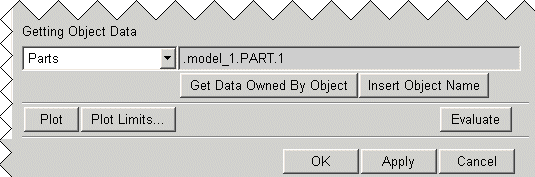
1. From the option menu located under the Getting Object Data label, select the desired object type.
2. Right-click the text box to the right of the object type you chose in Step 1, point to the object type name, and then select Browse to look for an object name.
To insert an object name into the function definition:
After you've specified the object name, you can insert it into the function definition.
■Select Insert Object Name.
Adams View inserts the name of the object in the function definition, in the function work area.
Adams View inserts the name of the object in the function definition, in the function work area.
Getting Data Owned by an Object
When in expression mode, the Function Builder enables you to get the data owned by an object and use it in a function definition. The list containing the data owned by objects and the aliases associated with them, is called the data dictionary.
If you want to use a certain data object in the function definition, you can browse for it in the data dictionary, and once you find it, insert it in the function work area.
To access the data dictionary:
1. Select Get Data Owned by Object.
The Selections dialog box appears, containing the data dictionary associated with the object you specified, as shown next.
Data Dictionary for Markers
The Selections dialog box appears, containing the data dictionary associated with the object you specified, as shown next.
Data Dictionary for Markers
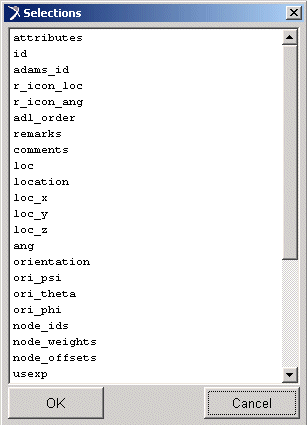
2. Select an item from the data dictionary.
3. Select OK. Adams View inserts the item into the function text area.
Evaluating Functions
When in expression mode, the Function Builder gives you the option to see the values to which your functions evaluate.
To evaluate a function:
1. Make sure there is a function in the function text area.
2. Select Evaluate.
Adams View displays the value of the function next to Function Value.
Note: | Under the model object, there are both "ground" and "ground_part" fields. The latter was added to determine the ground part of the given model at any given point in time and provides a workaround for the issue of expressions returning the incorrect ground part for a model when the name of the model's ground part is not "ground". It is therefore recommended to use "ground_part" instead of "ground". |
Plotting Using the Function Builder
Using the Function Builder, you can plot the values of some functions. The following two sections explain how to plot functions using the Function Builder.
Plotting Functions
Adams View gives you the option to preview a plot of your function. You can use the plotting feature whenever your function evaluates to multiple values.
When in run-time mode, time is presumed to be the independent variable when plotting a function (for example, SIN(TIME)).
To plot a function:
1. Make sure you have a correct function in the function work area.
2. Select Plot.
Adams View displays a plot of your results.
Note: | You can only plot the run-time functions that are in the math category and can be interpreted as design-time functions. |
Setting Plot Limits
When in run-time mode, you can set limits for the horizontal axis values. Adams View plots the independent data on the horizontal axis.
To set plot limits:
1. Make sure that there is a correct function in the function work area.
2. Select Plot Limits.
A dialog box appears, prompting you for the values that you want to use.
A dialog box appears, prompting you for the values that you want to use.
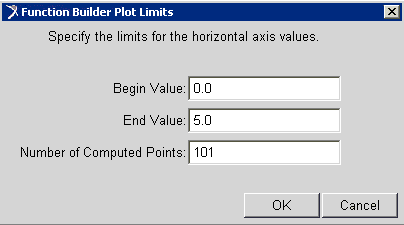
3. Enter the beginning and ending values and the number of points to be computed, and then select OK.
Verifying Function Syntax
When working in run-time mode, you can do a cursory check to determine if your function syntax is correct. If the function syntax is incorrect, Adams View gives you an error message pointing out the problem area. Otherwise, it informs you that the function syntax is correct.
To verify function syntax:
1. Make sure that there is a function in the function work area.
2. Select Verify.
Setting Measure Attributes
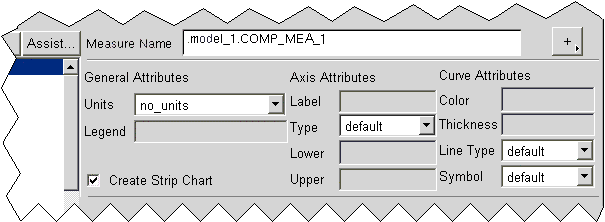
When creating or modifying a computed or a function measure, you can set measure attributes to be used when plotting the measure for these three attributes categories:
■General - Specify the units and the legend text.
■Axis - Specify the text for the axis label, the axis type, as well as the lower and upper limit for the axis.
■Curve - Specify the curve color, thickness, line type, and symbol.
To set measure attributes:
■Enter the desired attributes in the boxes provided, select attributes from the option menus, or select default to use the Adams View defaults.
Creating a Measure Strip Chart
When creating or modifying a computed or a function measure, you can choose to create a strip chart of the measure.
To create a measure strip chart:
1. Create or modify the measure.
2. Select Create Strip Chart.
3. Select OK.
Adams View displays a strip chart of your measure.
For more information on using strip charts, see Setting Up Strip Charts in Adams View online help.
Getting Assistance
You can get assistance when working with system-supplied functions in either run-time or expression mode. The Assist dialog box lists all the arguments specific to the function for which you need assistance, and prompts you for argument values. Once you enter the argument values and close the Assist dialog box, Adams View automatically inserts those values into the function work area.
When entering values in the Assist dialog box, do not enclose them in parenthesis, braces, or quotation marks. Adams View automatically enters these as needed, before displaying expressions in the function work area.
To get assistance:
1. Select a function from the list of system-supplied functions.
2. Select Assist.
The Assist dialog box appears.
Note: | There are a few functions for which Adams View doesn't provide assistance. When you ask for assistance with a function for which assistance is not available, a message appears. Select OK to exit the message dialog box. |
Inserting Operators in Function Definitions
Regardless of whether you are in expression or run-time mode, you can use the Operators tool  to insert operators in the function definition, in the function work area.
to insert operators in the function definition, in the function work area. To insert operators in a function definition:
1. Right-click the Operators tool.
A pop-up menu displays the available operators.
A pop-up menu displays the available operators.
2. Select the desired operator.
Adams View inserts the operator in the function text area.
Adams View inserts the operator in the function text area.
Displaying System-Supplied Function Categories
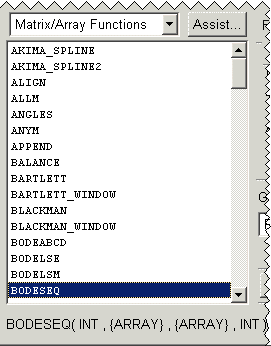
When working in either expression or run-time mode, you can display a list of any system-supplied functions. The math category is the default for both the run-time and the design-time functions. The Function Builder lists the functions under their category name. To see all the functions in a given category, scroll up and down the list of functions.
Table 1 lists the design-time functions categories and Table 2 lists the run-time functions categories.
Table 1. Design-Time Functions Categories
Table 1. Design-Time Functions Categories
Category: |
|---|
Table 2. Run-Time Functions Categories
Category: |
|---|
To display system-supplied function categories:
1. Select the functions option menu, and then select the desired category.
The Function Builder displays the list of functions beneath the category name.
The Function Builder displays the list of functions beneath the category name.
2. Select the desired function from the list.
The function name and arguments appear under the function list.
The function name and arguments appear under the function list.