Running Suspension Analyses
You perform suspension analyses, which in Adams Car are quasi-static equilibrium analyses, to learn how a suspension controls the wheel motions and transmits load from the wheels to the chassis. To perform a suspension analysis, you first create or open a suspension assembly that contains the selected subsystems and the test rig. To create a suspension assembly, you can select any subsystem that has either a suspension or a steering major role.
Using Adams Car, you can:
■Easily modify the topology and the properties of the components of your suspension.
■Run a standard set of suspension and steering maneuvers.
■View suspension characteristics through plots. Learn about suspension characteristics.
For a suspension analysis, you can specify inputs to:
■Move the wheels through bump-rebound travel and measure the toe, camber, wheel rate, roll rate, side-view swing-arm length, and other characteristics.
■Apply lateral load and aligning torque at the tire contact path and measure the toe change and lateral deflection of the wheel.
■Rotate the steering wheel from lock to lock and measure the steer angles of the wheels and the amount of Ackerman, which is the difference between the left and right wheel steer angles.
■Set the position at which initial vertical setup takes place (useful for adjustable - for more information please see the tutorial Adding the vertical setup mode of Adams Car Suspension Testrig.)
You specify the inputs to the analysis by typing them directly into an analysis dialog box or by selecting a loadcase file that contains the desired inputs.
During the analysis, the test rig articulates the suspension assembly in the specified number of steps and applies the inputs you specified. At each step, Adams Car calculates over 38 suspension characteristics, such as toe and camber angle, track change, wheel-base change, wheel rate (vertical stiffness), and fore-aft wheel center stiffness. You can plot these characteristics and use them to determine how well the suspension controls the motions of the wheels. Based on the results, you can alter the suspension geometry or spring rates and analyze the suspension again to evaluate the effects of the alterations.
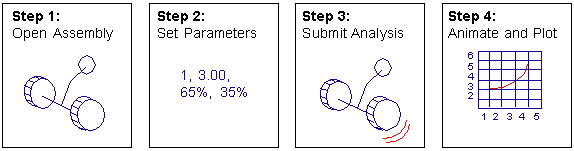
The following figure shows an overview of the suspension analysis process.
Setting up Suspension Analyses
Before you submit a suspension analysis, you must set the Suspension Parameters that Adams Car uses when calculating suspension characteristics.
To set parameters:
1. From the Simulate menu, point to Suspension Analysis, and then select Set Suspension Parameters.
2. Enter the necessary parameters as explained in the dialog box help for Suspension Analysis: Setup Parameters.
3. Select OK.
To set up suspension analyses:
1. From the Simulate menu, point to Suspension Analysis, and then select the analysis you want to set up.
2. Enter the vertical wheel travel and the other parameters needed to control the analysis.
3. Optionally, select one or more loadcase files (.lcf) from an Adams Car database. Loadcase files are text files that contain the vertical wheel travel and other parameters needed to control a suspension analysis. If you regularly perform several kinds of suspension analyses using the same ranges of travel, you should consider creating loadcase files for these. You can then submit all the analyses without having to reenter travel parameters each time.
As you perform an analysis for which you did not create a loadcase file, Adams Car temporarily creates one for you and deletes it after the analysis.
4. Specify the number of Solution Steps in the analysis.
5. Select OK.
Compliance Analysis
The compliance event analysis used to evaluate suspension compliance under various loading conditions like lateral (inboard/outboard), longitudinal (fore/aft), aligning torque and lateral force offset
To set up a compliance analysis:
1. From the Simulate menu, point to Suspension Analysis, and then select Compliance.
2. Enter the necessary parameters as explained in the dialog box help for Suspension Analysis: Compliance.
3. Select OK.
External-File Analyses
You can perform two types of external-file analyses:
Loadcase Analysis
A loadcase analysis reads the analysis inputs (for example, vertical wheel travel, steering travel, and static loads) from one or more existing loadcase files. When you supply more than one loadcase file, Adams Car performs one analysis for each loadcase file. See an Example Suspension Loadcase File.
A loadcase analysis requires a suspension subsystem.
Each loadcase analysis produces a separate set of output files, such as .gra, .req, and .out.
To set up a loadcase analysis:
1. From the Simulate menu, point to Suspension Analysis, and then select External Files.
2. Enter the necessary parameters as explained in the dialog box help for External Files.
3. Select OK.
Wheel-Envelope Analysis
A wheel-envelope analysis generates wheel-center positions and orientations for use in packaging the wheel/tire within the wheel well (fender). The analysis sweeps the wheels through their vertical and steering travel in fixed increments based on information stored in a wheel-envelope input file (.wen). The positions and orientations for the left and right wheel centers are output to a wheel-envelope output file (.wev) for import into computer-aided design (CAD) packages. See an Example Wheel-Envelope Input File and Example Wheel-Envelope Output File.
A wheel-envelope analysis requires suspension and steering subsystems.
A wheel-envelope input file has the same format as a static loadcase file, however, Adams Car ignores columns three through ten: left and right lateral force, aligning torque, brake force, and driving force.
You can create or modify wheel-envelope input files using the Curve Manager.
To set up a wheel-envelope analysis:
1. From the Simulate menu, point to Suspension Analysis, and then select External Files.
2. Specify one or more wheel-envelope input files that define the vertical wheel and steering inputs.
4. Select OK.
Frame Compliance Analysis
A frame compliance is a half vehicle (front or rear) event. This event moves each body attachment (one at a time) 1 mm in xyz directions. You can use the result of this analysis to construct a compliance matrix (see Definition of Compliance Matrix) for the suspension to help determine where local body compliance most affects system performance.
To set up a frame compliance analysis:
1. From the Simulate menu, point to Suspension Analysis, and then select Frame Compliance.
2. Enter the necessary parameters as explained in the dialog box help for Suspension Analysis: Frame Compliance.
3. Select OK.
Roll & Vertical Force Analysis
A roll and vertical force analysis sweeps the roll angle while holding the total vertical force constant. The total vertical force is the sum of the vertical forces on the left and right wheels. You can specify the total vertical force used by the left and right actuators to move the wheels.
In contrast to the opposite wheel-travel analysis, the roll and vertical force analysis allows the wheels to seek their own vertical position.
To set up a roll & vertical force analysis:
1. From the Simulate menu, point to Suspension Analysis, and then select Roll & Vertical Force.
2. Enter the necessary parameters as explained in the dialog box help for Suspension Analysis: Roll & Vertical Force.
3. Select OK.
Static Load Analysis
Depending on the type of load you input, the static load analysis applies static loads to the spindle and the tire contact patches between the specified upper and lower load limits. A static load analysis requires a suspension subsystem.
To set up a static load analysis:
1. From the Simulate menu, point to Suspension Analysis, and then select Static Load.
2. Enter the necessary parameters as explained in the dialog box help for Suspension Analysis: Static Loads.
3. Select OK.
Steering Analysis
A steering analysis steers the wheels over the specified steering-wheel angle or rack travel displacement from the upper to the lower bound. The application of steering motion results in a wheel displacement at the specified wheel height.
A steering analysis requires a suspension and a steering subsystem.
To set up a steering analysis:
1. From the Simulate menu, point to Suspension Analysis, and then select Steering.
2. Enter the necessary parameters as explained in the dialog box help for Suspension Analysis: Steering.
3. Select OK.
Wheel-Travel Analyses
A wheel-travel analysis allows you to look at how the characteristics of a suspension change throughout the vertical range of motion of the suspension.
You can perform three types of wheel-travel analyses. As a minimum, all wheel-travel analyses require a suspension subsystem. These analyses can also include a steering subsystem.
The force limits for the left/right_vertical jack force are implemented as real numbers and are defaulted to -2.0E+04 and 4.0E+04 Newton.
You can modify the force limits in the Template Builder using the actuator modify dialog box (because actuators in Adams Car are a topological element) or using the Command Navigator and modifying the corresponding variables.
For example, to modify the left-side actuator force limits from the default values in the Standard Interface after having an assembly already opened, you go to: Tools -> Command Navigator -> Variable -> Modify.
In the Variable Modify dialog box, select the desired limit variable (.assembly.testrig.jfl_jack_force.force_limits, in this case) and modify the values to the new force limits.
Opposite Wheel-Travel Analysis
An opposite wheel-travel analysis moves the left and right wheel through equal, but opposite, vertical amounts of travel to simulate body roll. The left and right wheels move over the specified jounce and rebound travel, 180o out of phase with each other. You specify the parameters to define the vertical wheel travel and the fixed steer value when you submit the analysis.
To set up an opposite wheel-travel analysis:
1. From the Simulate menu, point to Suspension Analysis, and then select Opposite Wheel Travel.
2. Enter the necessary parameters as explained in the dialog box help for Opposite Wheel Travel Analysis.
3. Select OK.
Parallel Wheel-Travel Analysis
A parallel wheel-travel analysis keeps the left wheel and right wheel heights equal, while moving the wheels through the specified bump and rebound travel.
To set up a parallel wheel-travel analysis:
1. From the Simulate menu, point to Suspension Analysis, and then select Parallel Wheel Travel.
2. Enter the necessary parameters as explained in the dialog box help for Suspension Analysis: Parallel Travel.
3. Select OK.
Single Wheel-Travel Analysis
A single wheel-travel analysis moves one wheel, either the right or left, through the specified jounce and rebound travel while holding the opposite wheel fixed in a specified position.
To set up a single wheel-travel analysis:
1. From the Simulate menu, point to Suspension Analysis, and then select Single Wheel Travel.
2. Enter the necessary parameters as explained in the dialog box help for Single Wheel-Travel Analysis.
3. Select OK.
Static Vehicle Characteristics (SVC) Analysis
Static Vehicle Characteristics (SVC) refers to a set of Adams utility subroutines (CONSUB) which compute Static Vehicle Characteristics (SVC) for automobile or light truck suspensions at static equilibrium. For a half-vehicle, SVC computes only suspension characteristics. See Static Vehicle Characteristics (SVC) help.
A CONSUB controls this analysis. For more information on CONSUB, see Welcome to Adams Solver Subroutines.
To set up a Static Vehicle Characteristics (SVC) analysis:
1. From the Simulate menu, point to Suspension Analysis and then select Static Vehicle Characteristics.
2. Press F1 and then follow the instructions in the dialog box help for Suspension Analysis: Static Vehicle Characteristics.
3. Select OK.
Computation of Suspension and Steering Characteristics
During suspension analyses, Adams Car computes 38 different characteristics. The suspension and steering characteristics that Adams Car computes are based on the suspension geometry, the suspension compliance matrix, or both. Suspension geometry refers to the position and orientation of suspension parts relative to ground as the suspension is articulated through its ride, roll, and steer motions. For example, the orientation of the spindle axes is used to compute the toe and camber angles.
The suspension compliance matrix refers to incremental movements of the suspension due to the application of incremental forces at the wheel centers. Adams Car computes the suspension compliance matrix at each solution position as the suspension is articulated through its motion. Characteristics such as suspension ride rate and aligning torque camber compliance are computed based on the compliance matrix.
The suspension and steering characteristics are based on:
Definition of Compliance Matrix
The compliance matrix for a system, [C], is defined as the partial derivatives of displacements with respect to applied forces:
[C] = [∂X/∂F]
If a system is assumed to be linear, the compliance matrix can be used to predict the system movement due to force inputs:

From this perspective, matrix element cij is the displacement of system degree of freedom i due to a unit force at degree of freedom j.
Adams Car uses a 12 x 12 matrix relating the motion of the left and right wheel centers to units forces and torques applied to the wheel centers. This matrix has the form shown next:
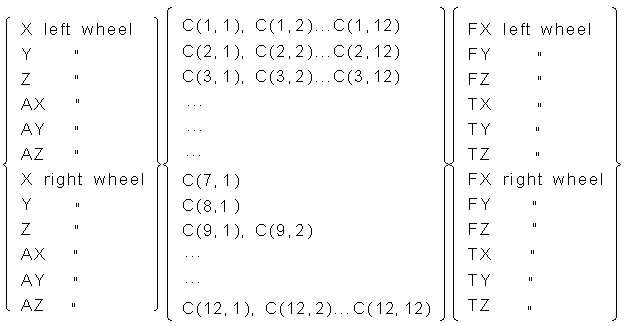
For example, element C(3,3) is the vertical motion of the left wheel center due to a unit vertical force applied at the left wheel center. Element C(3,9) is the vertical motion of the left wheel center due to a unit vertical force applied at the right wheel center. For an independent suspension without a stabilizer bar, C(3,9) is zero since a vertical force on the right wheel will not cause motion of the left wheel. The other elements of the compliance matrix are defined similarly.
Steer Axis Computation
Adams Car needs the steer axis of a suspension to compute suspension characteristics, such as caster angle, kingpin inclination, scrub radius, and caster moment arm or caster trail. When you create a suspension template in Adams Car, you must select the method Adams Car will use to compute the steer axis and provide the necessary input information.
Adams Car offers two methods for calculating suspension steer axes:
Both methods give accurate results, but the instant axis method is more general, because it can be used when the steer axis cannot be determined geometrically, such as in a five-link suspension. Currently, for a new suspension template the default is the geometric method.
Geometric Method
Using the geometric method, Adams Car calculates the steer axis by passing a line through two non-coincident points located on the steer axis. To use the geometric method, you must identify a part or parts and two hardpoints that fix the steer axis.
For example, in a double wishbone suspension you might identify the wheel carrier part and Hardpoints located at the upper and lower ball joints. For a MacPherson strut suspension, you might identify the wheel carrier part and a hardpoint located at the lower ball joint for one point, and the strut rod and a hardpoint located where the strut attaches to the body for the second point.
Instant Axes Method
Using the instant axes method, Adams Car calculates the left and right steer axes from the suspension's compliance matrix. While the calculation is performed numerically, it is best described in physical terms. To calculate the steer axis at a given suspension position, Adams Car first locks the spring travel and applies an incremental steering torque or force in all directions (3 forces and 3 torques). Then, from the resulting translation and rotation of the wheel carrier parts, Adams Car calculates the instant axis of rotation for each wheel carrier. The instant axes of rotation are the steer axes.
To use the instant axes method, you must identify a part and a hardpoint where Adams Car should lock the spring travel. Adams Car locks the spring travel by locking the vertical motion of the part you identify at the chosen hardpoint location. You can use any part and hardpoint, provided that locking the vertical motion of that part at that location locks the spring travel. For example, in suspensions using coil or leaf springs, a good choice is the lower spring seat (such as, the part and hardpoint where the spring acts on the suspension). For a double wishbone suspension sprung by a torsion bar on the lower control arm, choose the lower control arm at its connection to the wheel carrier. Locking the vertical motion of the lower control arm at this location eliminates rotation in the torsion bar. Do not choose the wheel center location and wheel carrier. If you do, Adams Car calculates inaccurate steer axes.
In almost all suspensions, the wheel center lies outboard of the steer axis and the steer axis is angled rearward (caster angle > 0) and inward (kingpin inclination > 0) relative to vertical. When the wheels are steered (for example, rotated about the steer axis), the motion of the wheel centers has a vertical component. Locking the vertical motion of the wheel carrier at the wheel center eliminates this vertical component and gives an inaccurate steer axis.
When no steering subsystem is present, the steer axis that the instant axis method calculates is typically inaccurate for a steerable suspension because the inner tie rods attach to ground and are not free to move laterally. Therefore, when a steering subsystem is present, the motion Adams Car excites by applying an aligning torque to the wheel carrier is not comparable to the steering motion.
Dynamic Analysis
A dynamic analysis actuates the suspension at the contact patch via user defined runtime function expressions or by referencing existing RPC3 files. You can drive the testrig's vertical actuators with forces, displacements, velocities, or accelerations. You can also specify wheel forces (for example, cornering force, overturning moment and so on.) as functions of time using function expressions or by referencing existing RPC3 files.
For steerable assemblies, it is also possible to define a runtime function expression or by referencing existing RPC3 files for the steering motion, thereby combining vertical excitation with steering sweeps.
If your subsystem(s) contain adjustable forces for performing automatic suspension alignment, and the adjustable forces are currently active, a static analysis will be performed prior to the dynamic analysis. The adjustable forces will perform the alignment during this static analysis, according to your selection of Vertical Setup Mode. Vertical Setup Mode allows you to control whether the alignment is performed at wheel center travel = 0 or contact patch travel = 0. After the static analysis, the adjustable forces will be locked in their aligned position, and deactivated for the following dynamic analysis. After the dynamic analysis has completed, any adjustable forces that were previously active will be returned to their active state.
Note that the Computation of Suspension and Steering Characteristics is available for dynamic suspension analyses with the C++ Solver, but results are limited if you set the Jack Excitation Mode to a motion (displacement, velocity, or acceleration).
To set up a dynamic analysis:
1. From the Simulate menu, point to Suspension Analysis, and then select Dynamic.
2. Enter the necessary parameters as explained in the dialog box help for Suspension Analysis: Dynamic.
3. Select OK.
Example Suspension Loadcase File
In Adams Car, you can use loadcase files to specify different types of suspension analyses. The following is an example loadcase file.
$-----------------------------------------------MDI_HEADER
[MDI_HEADER]
FILE_TYPE = 'lcf'
FILE_VERSION = 4.0
FILE_FORMAT = 'ASCII'
$-----------------------------------------------UNITS
[UNITS]
LENGTH = 'mm'
ANGLE = 'degrees'
FORCE = 'newton'
MASS = 'kg'
TIME = 'second'
$
$Generation Parameters: (Do Not Modify!)
$ loadcase = 1
$ nsteps = 10
$ bump_disp = 100.00 rebound_disp = -100.00
$ steering_input = angle
$ stat_steer_pos = 0.00
$
$-----------------------------------------------mode
[MODE]
STEERING_MODE = 'angle'
VERTICAL_MODE = 'length'
$-----------------------------------------------data
[DATA]
$COLUMN: input type: type of input data: side:
$ (c1) wheel z disp / force left
$ (c2) wheel z disp / force right
$ (c3) lateral force (y) left
$ (c4) lateral force (y) right
$ (c5 aligning torque (z-axis) left
$ (c6) aligning torque (z-axis) right
$ (c7) brake force (y) left
$ (c8) brake force (y) right
$ (c9) driving force (y) left
$ (c10) driving force (y) right
$ (c11) steering force / steer angle / rack travel
{ whl_z_l whl_z_r lat_l lat_r align_l align_r brake_l brake_r drive_l drive_r steer}
-100.0000 -100.0000 0.0000 0.0000 0.0000 0.0000 0.0000 0.0000 0.0000 0.0000 0.0000
-80.0000 -80.0000 0.0000 0.0000 0.0000 0.0000 0.0000 0.0000 0.0000 0.0000 0.0000
-60.0000 -60.0000 0.0000 0.0000 0.0000 0.0000 0.0000 0.0000 0.0000 0.0000 0.0000
-40.0000 -40.0000 0.0000 0.0000 0.0000 0.0000 0.0000 0.0000 0.0000 0.0000 0.0000
-20.0000 -20.0000 0.0000 0.0000 0.0000 0.0000 0.0000 0.0000 0.0000 0.0000 0.0000
0.0000 0.0000 0.0000 0.0000 0.0000 0.0000 0.0000 0.0000 0.0000 0.0000 0.000
20.0000 20.0000 0.0000 0.0000 0.0000 0.0000 0.0000 0.0000 0.0000 0.0000 0.0000
40.0000 40.0000 0.0000 0.0000 0.0000 0.0000 0.0000 0.0000 0.0000 0.0000 0.0000
60.0000 60.0000 0.0000 0.0000 0.0000 0.0000 0.0000 0.0000 0.0000 0.0000 0.0000
80.0000 80.0000 0.0000 0.0000 0.0000 0.0000 0.0000 0.0000 0.0000 0.0000 0.0000
100.0000 100.0000 0.0000 0.0000 0.0000 0.0000 0.0000 0.0000 0.0000 0.0000 0.0000
Example Wheel-Envelope Input File
The following is an example of a wheel-envelope input file (.wen) that you can use to control a wheel-envelope analysis.
Note: | For wheel-envelope input files, Adams Car ignores columns three through ten: (left and right) lateral force, aligining torque, brake force, and driving force. |
$--------------------------------------------MDI_HEADER
[MDI_HEADER]
FILE_TYPE = 'wen'
FILE_VERSION = 5.0
FILE_FORMAT = 'ascii'
$--------------------------------------------UNITS
[UNITS]
LENGTH = 'mm'
FORCE = 'newton'
ANGLE = 'deg'
MASS = 'kg'
TIME = 'sec'
$--------------------------------------------MODE
[MODE]
STEERING_MODE = 'angle'
VERTICAL_MODE = 'length'
$--------------------------------------------GRID
[GRID]
BOUNDARY_STEERING_GRID = 100.0
BOUNDARY_WHEEL_GRID = 20.0
INTERIOR_STEERING_GRID = 100.0
INTERIOR_WHEEL_GRID = 20.0
$--------------------------------------------DATA
[DATA]
$COLUMN: input type: type of input data: side:
$ (c1) wheel z disp / force left
$ (c2) wheel z disp / force right
$ (c3) lateral force (y) left
$ (c4 lateral force (y) right
$ (c5) aligning torque (z-axis) left
$ (c6) aligning torque (z-axis) right
$ (c7) brake force (y) left
$ (c8 brake force (y) right
$ (c9) driving force (y) left
$ (c10) driving force (y) right
$ (c11) steering steer angle / rack travel
$ {whl_z_l whl_z_r lat_l lat_r align_l align_r brake_l brake_r
drive_l drive_r steer}
-120.0 -120.0 0.0 0.0 0.0 0.0 0.0 0.0 0.0 0.0 -500.0
80.0 80.0 0.0 0.0 0.0 0.0 0.0 0.0 0.0 0.0 -500.0
90.0 90.0 0.0 0.0 0.0 0.0 0.0 0.0 0.0 0.0 -300.0
120.0 120.0 0.0 0.0 0.0 0.0 0.0 0.0 0.0 0.0 -200.0
120.0 120.0 0.0 0.0 0.0 0.0 0.0 0.0 0.0 0.0 200.0
85.0 85.0 0.0 0.0 0.0 0.0 0.0 0.0 0.0 0.0 350.0
80.0 80.0 0.0 0.0 0.0 0.0 0.0 0.0 0.0 0.0 500.0
60.0 60.0 0.0 0.0 0.0 0.0 0.0 0.0 0.0 0.0 500.0
30.0 30.0 0.0 0.0 0.0 0.0 0.0 0.0 0.0 0.0 450.0
-30.0 -30.0 0.0 0.0 0.0 0.0 0.0 0.0 0.0 0.0 450.0
-75.0 -75.0 0.0 0.0 0.0 0.0 0.0 0.0 0.0 0.0 500.0
-120.0 -120.0 0.0 0.0 0.0 0.0 0.0 0.0 0.0 0.0 500.0
Example Wheel-Envelope Output File
A wheel-envelope output file (.wev) contains a header and a data table, as explained next.
The first three lines comprise the header and contain the following information, in this order:
■Type of file
■Adams dataset title
■Date and time of file creation
The table that follows the header contains the following information:
■The first column shows the solution step number
■Columns 2-4 show the data for the left wheel center x, y, z
■Columns 5-7 show the data for the left wheel axis point x, y, z
■Columns 8-10 show the data for the right wheel center x, y, z
■Columns 11-13 show the data for the right wheel axis point x, y, z
The following is an example of a wheel-envelope output file:
Adams Car Wheel Envelope Analysis Output File - acar_v10.0
Adams Car Assembly
2000-01-19 16:41:21
1 | -4.2702 | -673.57 | 205.00 | -348.83 | -1611.7 | 170.29 | 7.0293 | 670.69 | 205.00 | 303.63 | 1620.7 | 107.88 |
2 | -4.6463 | -681.45 | 225.00 | -344.63 | -1621.7 | 206.15 | 6.7629 | 678.55 | 225.00 | 307.97 | 1628.3 | 139.91 |
3 | -4.9532 | -687.82 | 245.00 | -340.16 | -1630.0 | 239.60 | 6.5706 | 684.92 | 245.00 | 311.28 | 1634.4 | 170.26 |
4 | -5.2433 | -692.82 | 265.00 | -334.67 | -1637.0 | 271.40 | 6.3755 | 689.93 | 265.00 | 314.35 | 1639.0 | 198.89 |
5 | -5.5240 | -696.55 | 285.00 | -328.07 | -1643.0 | 301.70 | 6.1779 | 693.66 | 285.00 | 317.43 | 1642.1 | 225.76 |
6 | -5.7905 | -699.08 | 305.00 | -320.38 | -1648.0 | 330.44 | 5.9864 | 696.18 | 305.00 | 320.67 | 1643.8 | 250.76 |
7 | -6.0372 | -700.45 | 325.00 | -311.59 | -1652.1 | 357.51 | 5.8099 | 697.55 | 325.00 | 324.25 | 1644.1 | 273.76 |
8 | -6.2583 | -700.71 | 345.00 | -301.72 | -1655.3 | 382.78 | 5.6583 | 697.79 | 345.00 | 328.31 | 1643.0 | 294.55 |
9 | -6.4469 | -699.89 | 365.00 | -290.74 | -1657.8 | 406.03 | 5.5424 | 696.93 | 365.00 | 333.04 | 1640.3 | 312.88 |
10 | -6.5953 | -698.01 | 385.00 | -278.64 | -1659.4 | 426.98 | 5.4752 | 695.00 | 385.00 | 338.63 | 1636.2 | 328.39 |
... | ....... |