Working with Higher-Pair Constraints
Adams View provides you with two types of higher-pair constraints: point curve and 2D curve curve.
Point-Curve Constraints
The point-curve constraint restricts a fixed point defined on one part to lie on a curve defined on a second part. The first part is free to roll and slide on the curve that is fixed to a second part. The curve on the second part can be planar or spatial or open or closed. The first part cannot lift off the second part; it must always lie on the curve. A point-curve constraint removes two translational Degrees of freedom from your model.
When you specify the location of the point-curve constraint on the first part, Adams View creates a marker at that location. The marker is called the I marker. The I marker can only translate in one direction relative to the curve. The I marker, however, is free to rotate in all three directions.
You can use the point-curve constraint to model a Pin-in-slot mechanism or a Simple Cam Follower mechanism where a lever arm is articulated by the profile of a revolving cam.
When modeling a pin-in-slot mechanism, the point-curve constraint keeps the center of the pin in the center of the slot, while allowing it to move freely along the slot and rotate in the slot.
To create a point-curve constraint:
Before creating a point-curve constraint, read Tips on Creating Higher-Pair Constraints.
 .
. 2. In the settings container, set whether or not you will be selecting an edge or curve:
♦Edge - An edge is one of the wireframe outlines drawn on a solid. For example, you can use a Parasolid object representing a cam that you imported into Adams View.
3. Select a point on a part that will travel along a curve.
4. Select the curve or edge along which the point will travel. The curve can be closed or open. Note that when you select a closed curve, Adams View highlights only a portion of the curve. Adams View will use the entire curve.
To Modify Point-Curve Constraints
The following procedure changes the basic properties and sets initial conditions for a point-curve constraint. See Point-Curve Constraint Tool. Learn about Working with Higher-Pair Constraints.
Note: | You can also modify constraint properties using the Table Editor. |
1. Display the Constraint Modify Higher Pair Contact Point Curve dialog box as explained in Accessing Modify Dialog Boxes.
2. Assign a unique ID number to it. Learn about Adams Solver IDs.
3. In the Comments text box, add any comments about the cam that you want to enter to help you manage and identify the cam. Learn about Comments.
4. Set the basic properties as explained in the table below.
For the option: | Do the following: |
|---|---|
Curve Name | Change the curve that defines the shape on which the point can move. You can enter a curve on a part or a curve element. Learn about Using Curve Elements in Your Model. |
I Marker Name | Point that moves along the curve. |
J Floating Marker Name | Enter a marker that is a floating marker. Adams Solver positions the origin of the floating marker at the instantaneous point of contact on the curve. It orients the marker so that its x-axis is tangent to the curve at the contact point, its y-axis points outward from the curve’s center of curvature at the contact point, and its z-axis is along the binormal at the contact point. 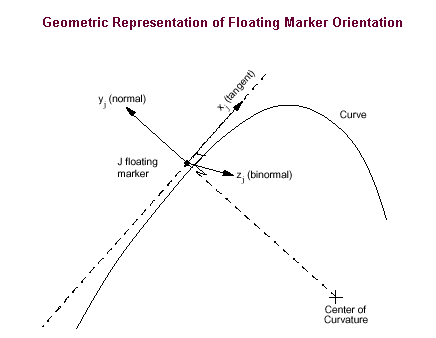 |
Ref Marker Name | Enter marker that is fixed on the part containing the curve on which the point must move. Adams Solver uses the reference marker to associate the shape defined by the curve to the part on which the reference marker lies. The curve coordinates are, therefore, specified in the coordinate system of the reference marker. |
Displacement Ic/ No Displacement Ic | Select either: ■Displacement Ic - Enter the initial point of contact along the curve. If the point you specify is not exactly on the curve, Adams View uses a point on the curve nearest to the point you specify. By default, you specify the initial point of contact in the coordinate system of the part containing the curve or specify it in the coordinate system of the marker you specify for Ic Ref Marker Name. ■No Displacement Ic - Leaves the initial displacement unset. |
Learn about Higher-Pair Constraints Initial Conditions. | |
Velocity Ic/ No Velocity Ic | Select either: ■Velocity Ic - Velocity with which the point (I marker) moves along the curve. You specify the velocity in the coordinate system of the part containing the curve. ■No I Velocity Ic - Leaves the initial velocity unset. |
Ic Ref Marker Name | You can: ■Enter the marker with which the initial point of contact on the curve is specified. ■Leave blank. Adams View uses the coordinate system of the part containing the curve. |
5. Set the initial conditions as explained in the table below, and then select OK.
For the option: | Do the following: |
|---|---|
Velocity Ic/ No Velocity Ic | Select either: ■Velocity Ic - Velocity with which the point (I marker) moves along the curve. You specify the velocity in the coordinate system of the part containing the curve. ■No Velocity Ic - Leaves the initial velocity unset. |
Ic Ref Marker Name | You can: ■Enter the marker with which the initial point of contact on the curve is specified. ■Leave blank. Adams View uses the coordinate system of the part containing the curve. |
Results Note
In addition to the forces generated by this constraint, the result set will also contain the entry "A" which is the position along the curve at which the constraint is acting. This is a normalized length measured from -1.0 (one end of the curve) to 1.0 (opposite end of the curve).
Curve-Curve Constraints
A curve-curve constraint restricts a curve defined on the first part to remain in contact with a second curve defined on a second part. The curve-curve constraint is useful for modeling cams where the point of contact between two parts changes during the motion of the mechanism. The curve-curve constraint removes two Degrees of freedom from your model.
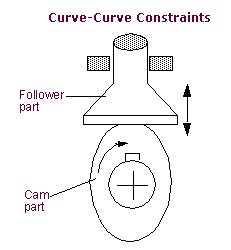
An example of a curve-curve constraint is a valve lifter where a cam lifts a plate-like object. The point of contact between the plate and the cam changes depending on the position and shape of the cam.
The two curves of the constraint, which you define by selecting edges in your model, must lie in the same plane. You can initially select curves that are not in the same plane, but Adams Solver moves the parts during Simulation to ensure that the two curves are constrained to the same plane of motion with respect to each other. Both curves can be open or closed.
The curves always maintain contact, even when the dynamics of the model might actually lift one curve off the other. You can examine the constraint forces to determine if any lift-off should have occurred. If your results require an accurate simulation of intermittent contact, you should model the contact forces directly using a vector force.
The curve-curve constraint models only one contact. Therefore, if the curves have contact at more than one point, you need to create a curve-curve constraint for each contact, each with a initial condition displacement near the appropriate point. Learn about Higher-Pair Constraints Initial Conditions.
Note: | Instead of defining a curve by selecting a curve on a part, you can also use a curve element that you create to define the curve. To specify a curve element, you can create geometry for the curve and select that geometry as you create the cam or modify the cam to reference the curve element. Learn about Creating and Modifying Curve Data Elements. |
To Create a Curve-Curve Constraints
Before creating a curve-curve constraint, read Tips on Creating Higher-Pair Constraints.
 .
. 2. In the settings container, for each part, set whether or not you will be selecting an edge or curve:
♦Edge - An edge is one of the wireframe outlines drawn on a solid. For example, you can use a Parasolid object representing a cam that you imported into Adams View.
3. Select a curve or edge that will travel along a second curve.
4. Select the curve along which the first curve will travel. The curve can be closed or open. Note that when you select a closed curve, Adams View highlights only a portion of the curve. Adams View will use the entire curve.
To Modify 2D Curve-Curve Constraints
The following procedure changes the basic properties and sets initial conditions for a 2D curve-curve constraint. See 2D Curve-Curve Constraint Tool.
Note: | You can also modify constraint properties using the Table Editor. |
1. Display the Constraint Modify Higher Pair Contact Curve Curve as explained in Accessing Modify Dialog Boxes.
2. Assign a unique ID number to it. Learn about Adams Solver IDs.
3. In the Comments text box, add any comments about the cam that you want to enter to help you manage and identify the cam. Learn about Comments.
4. Set the basic properties as explained in the table below.
For the option: | Do the following: |
|---|---|
I Curve Name | Change the curve that defines the shape of the curve that moves along the second curve (J curve). You can enter a curve on a part or a curve element. Learn about Curves. |
J Curve Name | Change the curve that defines the shape of the curve along which the first curve (I curve) moves. You can enter a curve on a part or a curve element. Learn about Curves. |
I Ref Marker Name | Enter a marker that is fixed on the part containing the first curve (I curve). Adams View uses the reference marker to associate the shape defined by the curve to the part on which the reference marker lies. The curve coordinates are, therefore, specified in the coordinate system of the reference marker. |
J Ref Marker Name | Enter a marker that is fixed on the part containing the second curve (J curve). Adams View uses the reference marker to associate the shape defined by the curve to the part on which the reference marker lies. The curve coordinates are, therefore, specified in the coordinate system of the reference marker. |
I Floating Marker Name | Enter a floating marker. Adams View positions the origin of the floating marker at the instantaneous point of contact on the first curve, which is also the global position of the J floating marker on the second curve. Adams View orients the marker so that its x-axis is along the tangent at the instantaneous contact point, its y-axis is along the instantaneous normal, and its z-axis is along the resultant binormal. |
J Floating Marker Name | Enter a floating marker. Adams View positions the origin of the floating marker at the instantaneous point of contact on the second curve, which is also the position of the I floating marker on the first curve. Adams View orients the marker so that its x-axis is along the tangent at the instantaneous contact point, its y-axis is along the instantaneous normal, and its z-axis is along the resultant binormal. |
5. Set the initial conditions as explained in the table below, and then select OK. Learn about Higher-Pair Constraints Initial Conditions.
For the option: | Do the following: |
|---|---|
I Displacement Ic/ No I Displacement Ic | Select either: ■I Displacement Ic - Enter the initial point of contact along the first curve (I curve). If the point you specify is not exactly on the curve, Adams View uses a point on the curve nearest to the point you specify. By default, you specify the initial point of contact in the coordinate system of the part containing the curve or specify it in the coordinate system of the marker you specify for I Ic Ref Marker Name. ■No I Displacement Ic - Leaves the initial displacement unset. |
J Displacement Ic/ No J Displacement Ic | Select either: ■J Displacement Ic - Enter the initial point of contact along the second curve (J curve). If the point you specify is not exactly on the curve, Adams View uses a point on the curve nearest to the point you specify. By default, you specify the initial point of contact in the coordinate system of the part containing the curve or specify it in the coordinate system of the marker you specify for J Ic Ref Marker Name. ■No J Displacement Ic - Leaves the initial displacement unset. |
I Velocity Ic/ No I Velocity Ic | Select either: ■I Velocity - Enter the initial velocity of the contact point along the first curve (I curve). This is the speed at which the contact point is initially moving relative to the curve. The velocity is: ■Negative if the contact point is moving towards the start of the curve. ■Positive if it is moving towards the end of the curve. ■Zero if it is stationary on the curve. ■No I Velocity Ic - Leaves the initial velocity unset. |
J Velocity Ic or No J Velocity Ic | Select either: ■J Velocity - Enter the initial velocity of the contact point along the second curve (J curve). This is the speed at which the contact point is initially moving relative to the curve. The velocity is: ■Negative if the contact point is moving towards the start of the curve. ■Positive if it is moving toward the end of the curve. ■Zero if it is stationary on the curve. ■No J Velocity Ic - Leaves the initial velocity unset. |
I Ic Ref Marker Name | You can: ■Enter the marker with which the initial point of contact (displacement) on the first curve (I curve) is specified. ■Leave blank. Adams View uses the coordinate system of the part containing the curve. |
J Ic Ref Marker Name | You can: ■Enter the marker with which the initial point of contact (displacement) on the second curve (J curve) is specified. ■Leave blank. Adams View uses the coordinate system of the part containing the curve |
Results Note
In addition to the forces generated by this constraint, the result set will also contain the entries "A1" and "A2":
■A1 is the position along the I part's curve at which the constraint is acting. This is a normalized length measured from -1.0 (one end of the curve) to 1.0 (opposite end of the curve).
■A2 is the position along the J part's curve at which the constraint is acting. This is a normalized length measured from -1.0 (one end of the curve) to 1.0 (opposite end of the curve).
Tips on Creating Higher-Pair Constraints
The following are some tips for creating point-curve and 2D curve-curve constraints. Learn more about these constraints with Point-Curve Constraint Tool and 2D Curve-Curve Constraint Tool.
■Specify a curve with a large number of curve points.
When you select a curve, be sure that it contains a sufficiently large number of points to achieve an acceptable fit.
■Use closed curves whenever possible.
It is generally easier to select a closed curve, if possible. Open curves represent modeling difficulties when the point on the follower part approaches one of the end points of the open curve.
■Define curves that cover the entire expected range of motion of the cam.
Adams Solver stops a Simulation if the contact point moves off the end of an open curve. Therefore, be sure that the curve you define covers the expected range of motion of the contact point.
■Avoid defining an initial configuration with the initial point of contact near to one of the end points of the curve.
■Avoid curve-on-curve constraints that have more than one contact point.
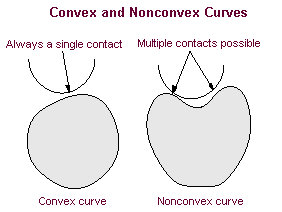
Adams Solver requires that your model contain a unique contact point during simulation. If there is more than one contact point, Adams Solver may be unable to find the correct contact point or may even jump from one contact point to the next. It also may have difficulties finding the correct solution. One way to ensure that contact points are unique is to specify curve shapes that are convex. The following figure shows two curves, the first is convex and the second is nonconvex. Note that for a convex curve, any line segment connecting two arbitrary points on the curve lies in the domain of the curve (it does not intersect the curve). The same is not true for nonconvex curves.
■You can create more than one contact using the same curve.
■It is easy to over-constrain a model using the curve-to-curve constraint. For example, in a cam-follower configuration, the cam should usually be rotating on a cylindrical joint, not a revolute joint. If the follower is held by a translational joint and the cam by a cylindrical joint, the curve-to-curve cam between the follower and cam prevents the cam from translating along the axis of rotation, which is the axis of the cylindrical joint. A revolute joint would add a redundant constraint in that direction.
Higher-Pair Constraints Initial Conditions
The initial conditions that you can set include:
■Point-curve (See Point-Curve Constraint Tool)
The initial conditions for a point-curve constraint include:
♦Velocity with which the point (I marker) moves along the curve. You specify the velocity in the coordinate system of the part containing the curve. Therefore, you specify the speed of the I marker from the standpoint of an observer on the part containing the curve. Therefore, if the curve, not the I marker, moves globally then the velocity of the I marker is still nonzero.
♦Initial point of contact on the curve. If the point you specify is not exactly on the curve, Adams View uses a point on the curve nearest to the point you specified. By default, you specify the initial point of contact in the coordinate system of the part containing the curve. If another coordinate system is more convenient, you can specify another initial conditions coordinate system marker and enter the initial point in its coordinates.
If you supply an initial point, Adams View assembles the model with the I marker at the specified point on the curve, even if it must override part initial conditions to do so. If you do not supply an initial point, Adams View assumes the initial contact is at the point on the curve closest to the I marker position. Adams View may adjust that contact point to maintain other part or constraint initial conditions.
The initial conditions for a 2D curve-curve constraint include:
♦Velocity with which the contact point on either or both curves is moving. You specify the velocity in the coordinate system of the part containing the second curve. If you do not supply an initial velocity, Adams View assumes the initial velocity is zero, but may adjust that velocity to maintain other part or constraint initial conditions.
♦Initial point of contact on either or both curves. If the point you specify is not exactly on the curve, Adams View uses a point on the curve nearest to the point you specify. By default, you specify the initial point of contact in the coordinate system of the part containing the curve. If another coordinate system is more convenient, you can specify another initial conditions coordinate system marker and enter the initial point in its coordinates.
If you supply an initial point, Adams View assembles the model with the marker at the specified point on the curve, even if it must override part initial conditions to do so. If you do not supply an initial point, Adams View assumes the initial contact is at the point on the curve closest to the first curve (I curve). Adams View may adjust that contact point to maintain other part or constraint initial conditions.
The initial conditions are only active during an Initial conditions simulation, which Adams View runs before it runs a Simulation of your model.
You can also leave some or all of the initial conditions unset. Leaving an initial condition unset lets Adams View calculate the initial conditions of the constraint during an initial conditions simulation depending on the other forces and constraints acting on the constraint. Note that it is not the same as setting an initial condition to zero. Setting an initial condition to zero means that the constraint will not be moving in the specified direction or from a specified point when the simulation starts, regardless of any forces and constraints acting upon it. For a Kinematic simulation, the initial conditions are redundant. Therefore, for a model with zero Degrees of freedom, you should always leave the initial conditions unset.
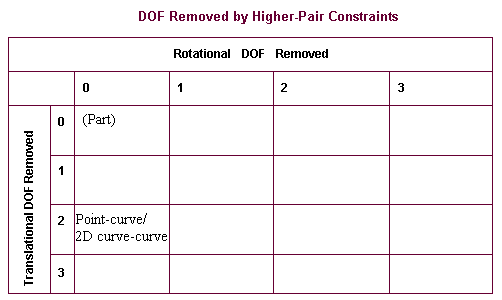
DOF Removed by Higher-Pair Constraints
The following table shows the degrees of freedom that higher-pair constraints remove.