Primitive Joints
About Joint Primitives
A joint primitive places a restriction on relative motion, such as restricting one part to always move parallel to another part. The joint primitives do not have physical counterparts as the idealized joints do. You can, however, combine joint primitives to define a complex constraint that cannot be modeled using the idealized joints. In fact, you can use the joint primitives to create any of the idealized joints listed in About Idealized Joints.
The different types of joint primitives that are available in Adams View are:
■Inline. See Inline Joint Tool.
■Inplane. See Inplane Joint Tool.
■Orientation. See Orientation Joint Tool.
■Parallel Axes. See Parallel Axes Joint Tool.
■Perpendicular Axes. See Perpendicular Axes Joint Tool.
Note that joint primitives are only available from the Joint palette, not the Joint tool stack on the Main toolbox.
Creating Joint Primitives
The following procedure explains how to create a joint primitive. You can select to attach the joint to parts or spline curves. If you select to attach the joint to a curve, Adams View creates a curve marker, and the joint follows the line of the curve. Learn more about curve markers with Marker Modify dialog box help. Attaching the joint to a spline curve is only available with Adams Solver (C++). Learn about switching solvers with Solver Settings - Executable dialog box help.
To create a joint primitive:
1. From the Joint palette, select the joint tool representing the joint primitive that you want to create.
2. In the settings container, specify how you want to define the bodies the joint connects. You can select:
♦1 Location (Bodies Implicit)
♦2 Bodies - 1 Location
♦2 Bodies - 2 Locations
♦For more on the effects of these options, see the help for the joint tool you are creating and about Connecting Constraints to Parts.
3. In the settings container, specify how you want the joint oriented. You can select:
♦Normal to Grid - Lets you orient the joint along the current Working grid, if it is displayed, or normal to the screen.
♦Pick Geometry Feature - Lets you orient the joint along a direction vector on a feature in your model, such as the face of a part.
4. In the settings container, set First Body and Second Body to how you want to attach the joint: on the bodies of parts, between a part and a spline curve, or between two spline curves.
5. Using the left mouse button, select the first part or a spline curve (splines and data element curves are all considered curves). If you selected to explicitly select the parts to be connected, select the second part or another curve using the left mouse button.
6. Place the cursor where you want the joint to be located (for a curve this is referred to as its curve point), and click the left mouse button. If you selected to specify its location on each part or curve, place the cursor on the second location, and click the left mouse button.
7. If you selected to orient the joint along a direction vector on a feature, move the cursor around in your model to display an arrow representing the direction along a feature where you want the joint oriented. When the direction vector represents the correct orientation, click the left mouse button.
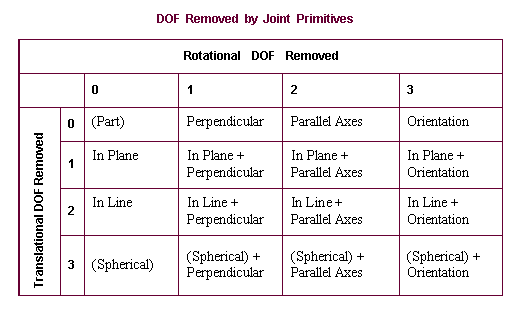
DOF Removed by Primitive Joints
The following table shows the degrees of freedom that joint primitives remove when used alone or in combination with other primitives.